


Microsoft Copilot is an AI-powered assistant from Microsoft. It’s built into apps like Word, Excel, Outlook, and Teams. It helps users work faster by turning natural language prompts into real actions, such as writing, summarizing, or analyzing. What is Microsoft Copilot used for? That depends entirely on what you’re doing and where you work.
For instance, some people use the AI assistant to draft emails, clean up formatting in Word, or summarize long email threads in Outlook. Others rely on it in Teams to generate meeting notes or create follow-up task lists.
Whether you’re in marketing, finance, education, or IT, Microsoft Copilot has potential use cases tailored to how you work. In this blog, we’ll break down what it is, what it does, and how real people are putting it to use across different roles, industries, and teams. Here’s what you’ll learn:
- What is Microsoft Copilot?
- What does Microsoft do?
- How does Microsoft Copilot work?
- Can Copilot be customized?
What is Microsoft Copilot?
Microsoft Copilot is an AI assistant built into Microsoft 365 apps like Word, Excel, Outlook, and Teams. It responds to natural language input, so you can type or say what you want to do, and it will try to do it for you.
That might include drafting a response to an email, summarizing a document, cleaning up formatting, creating a list of follow-up tasks after a meeting, or identifying trends in a spreadsheet without writing any formulas.
It works by combining large language models (LLMs), such as those developed by OpenAI, with the data and permissions already available in your Microsoft 365 environment. This includes content like emails, calendars, documents, and files you already have access to.
It does not train on your data or share it with external sources. Instead, it uses that information to give you context-aware help.
Copilot is not a standalone app. Instead, it is built directly into the tools people already use every day. You will see a Copilot icon or prompt bar appear inside Word, Excel, Outlook, or Teams when it is available.
Key things to know about Microsoft Copilot:
- It lives inside Microsoft 365 apps, not as a separate program
- It uses your own data (like emails and documents) to personalize its help
- It does not learn from or store your data outside your environment
- It responds to plain language requests, like “summarize this” or “make this more concise”
- It adapts to the app you’re in, offering different actions in Word, Excel, Outlook, or Teams
Read these next: |
What Does Copilot Do?
Copilot helps you move through routine tasks more quickly. It does this by working alongside you in Microsoft 365 apps. Instead of switching between tools, Googling how to write a formula, or staring at a blank page, you can ask Copilot to take the first step and guide you along the way.
How Does Copilot Help?
The way the Microsoft AI assistant helps depends on what you’re doing. In each app, it’s tuned to the type of work people tend to do there. For example, writing in Word looks different from reviewing data in Excel, so the kinds of support you get will match the task at hand.
Research from a 2023 Microsoft Work Trend Report indicates that:
- 70% of Copilot users say they are more productive with Copilot
- 68% of users say Copilot is increasing the quality of their work
- 77% of users don’t want to give it up.
Here’s what that looks like in practice:
- In Word: You can ask Copilot to write the first draft of a blog post, rephrase a few clunky sentences, or shorten a long section so it’s easier to read.
- In Excel: You might ask it to find trends in a sales report, calculate a column total, or explain a formula someone else created.
- In Outlook: It can summarize a long email thread so you don’t have to read every message, help you write a thoughtful reply, or clean up your wording before you hit send.
- In Teams: It can generate a list of follow-up tasks after a meeting or create a short summary of what was discussed, an especially helpful tool if you joined late or stepped away.
- Across apps: Copilot can use information from your Outlook inbox or calendar to help you write a meeting summary in Teams or draft a project update in Word. It doesn’t automatically transfer content between apps, but it can surface helpful context so you’re not switching tabs or searching for details yourself.
It’s important to note that Copilot doesn’t take over from you. It gives you a starting point that you can accept, tweak, or replace entirely. You’re still in control; it’s just a tool that makes the busywork faster.
| Real-World Example of How Copilot is Used: Educators
A teacher has a meeting with a parent in Teams to talk about a student who’s falling behind. Afterward, they need to document the conversation, follow up with the parent, and inform the principal. Copilot makes that easier. In Teams, it creates a summary of the meeting. The teacher opens Word and asks Copilot to turn that summary into a short support plan. Then in Outlook, they use Copilot to draft two emails; one to the parent with next steps, and one to the principal with the plan attached. The teacher still reviews everything, but Copilot helps move the work along without switching gears, without copying and pasting duplicate information, or having to start each task from scratch. |
How Does Copilot Work?
Copilot is powered by LLMs, such as those developed by OpenAI, and connected to Microsoft 365 through Microsoft’s secure architecture. It combines natural language understanding with the organizational data you already work with every day.
When you ask Copilot to do something, like write a summary, analyze a table, or draft a response, it runs through a coordinated process behind the scenes:
Here’s what’s happening under the hood:
- Input understanding: You type or speak a request in plain language. That input is parsed by a large language model, which is trained to interpret intent, tone, and context.
- Context gathering: Copilot checks the surrounding context in your Microsoft 365 environment. This might include the open document, the thread you’re replying to, recent calendar events, or connected files.
- Data grounding via Microsoft Graph: Microsoft Graph provides the framework for secure, permission-based access to your data. Copilot uses this to ground its response in facts pulled from your actual documents, messages, or workspaces.
- Response generation: The LLM generates a response that is shaped by the context it gathered. This step happens in real time, with input from Microsoft’s orchestration layer, which filters, formats, and adjusts the output for each specific app (Word, Excel, Outlook, etc.).
- Result preview: The suggestion appears in your app, ready for you to review, edit, or ignore. Copilot doesn’t take action until you do.
Unlike consumer AI tools, Copilot doesn’t train on your data or send it to public models. Everything is managed through Microsoft’s enterprise-grade security and compliance framework, including encryption at rest and in transit.
The takeaway? Copilot isn’t just a chatbot sitting on top of Microsoft 365. It’s a tightly integrated system that blends user input, language intelligence, organizational data, and app-specific formatting to generate useful suggestions inside your everyday tools.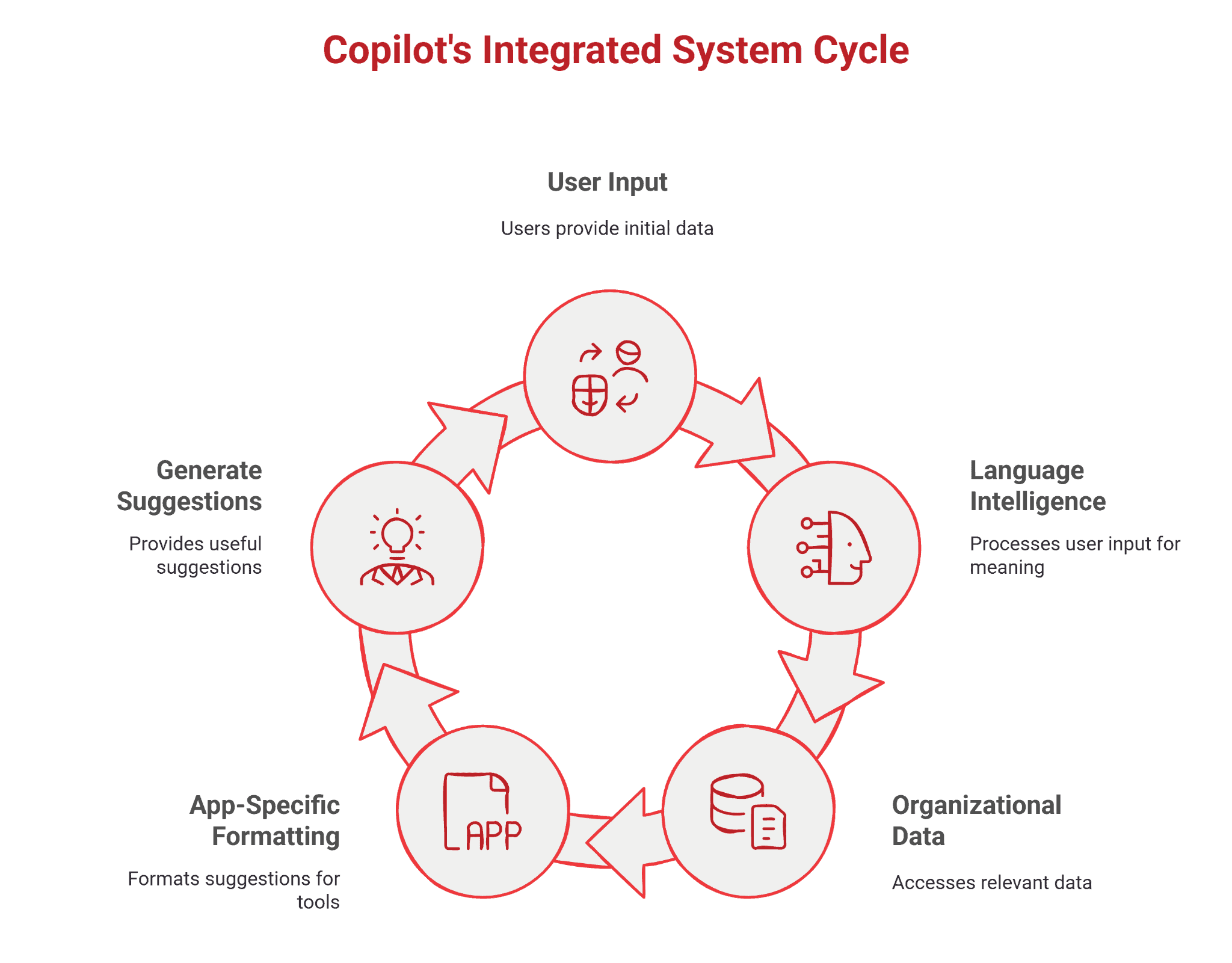 |
Can Copilot Be Customized?
Yes. For organizations with more advanced needs, Microsoft offers Copilot Studio, a tool that lets teams build their own copilots for specific tasks or internal workflows. These custom copilots can do things like answer HR questions, guide employees through processes, or connect to business tools like a CRM or helpdesk system.
While it can feel like a chatbot on the surface, it’s more than that. Copilot Studio allows businesses to shape how AI works inside their organization by combining prompts, workflows, and data connections, all within Microsoft’s secure environment.
Ready to Advance Processes and Workflows With Windows’ AI Assistant, Microsoft Copilot? Let’s Talk.
Now is a good time to be excited about your workflow. Copilot is already helping people spend less time on busywork and more time on the parts of their job that matter. Whether you’re writing a report, reviewing a spreadsheet, or just trying to get through your inbox a little faster, Copilot can take some of the weight off.
It’s designed to fit right into your Microsoft 365 setup, no workarounds, no new habits to build, and no guessing where to start.
If you’re curious about how it could work for your team, Logic V is ready to help. We specialize in Microsoft solutions and can help you explore Copilot in a way that actually makes sense for your day-to-day.
Contact us today. Let’s take a look at what you’re doing now, and how Copilot can make it easier.