


When technology isn’t working for you, it’s likely creating irritations and slowing you down. If your organization uses Microsoft 365, its Copilot solution can significantly reduce tech frustrations. Exploring how to use Microsoft Copilot to work faster, reduce repetitive tasks, and make better use of the tools you already rely on is a great way to improve your daily work life.
“Microsoft Copilot lets your team move faster and work smarter without having to change their tools or processes,” says the CEO of Logic V. “It’s one of the most practical AI investments a business can make right now.”
Nearly 70% of Fortune 500 companies use Copilot. That’s because Copilot integrates directly into apps like Word, Excel, Outlook, Teams, and PowerPoint to assist with writing, data analysis, meeting follow-ups, and more. It uses your existing Microsoft content and context to deliver helpful results without the need for complicated setup.
In this blog, we’ll explain what Microsoft Copilot can do, share real-world examples of how today’s businesses are using it, and outline practical ways to start using Copilot in your daily work.
Microsoft Copilot Use Cases for Businesses That Make Work Easier and Increase Productivity
Microsoft Copilot helps solve everyday work problems by reducing busywork and giving teams more control over their time. It works inside the Microsoft 365 tools you already use, including Outlook, Excel, Word, Teams, and PowerPoint. There is no need to learn new systems or change your workflow. Copilot simply enhances the apps you use every day.
What can Microsoft Copilot do for you and your team? Below are real Copilot users who demonstrate how small and mid-sized businesses are utilizing it to accomplish more with fewer roadblocks.
Problem: Your inbox is cluttered and hard to manage
How Copilot helps: Copilot in Outlook can summarize lengthy email threads, extract key points, and suggest responses that you can send with one click. It helps you stay on top of communication without spending your morning sorting through emails.
Problem: You leave meetings without clear takeaways
How Copilot helps: Copilot in Teams can generate a meeting summary, list key decisions, and suggest follow-up tasks. You can quickly review what was discussed and what needs to happen next, even if you joined late or had to step away.
Problem: You have data, but no time to dig through it
How Copilot helps: Copilot in Excel lets you ask plain-language questions about your spreadsheets. You can type questions like “What were the top-performing services last month?” and get answers instantly, without touching a formula.
Problem: Writing reports takes up too much time
How Copilot helps: Copilot in Word can help draft business documents from scratch or based on bullet points. It can also revise your writing to be more formal, more concise, or easier to read. This is especially helpful for recurring content, such as proposals or monthly updates.
Problem: Building presentations slows down project work
How Copilot helps: Copilot in PowerPoint can turn meeting notes or Word documents into a complete slide deck. It can apply layouts, generate speaker notes, and organize your content, enabling your team to present ideas more efficiently with reduced preparation time.
Problem: Tasks and ideas are scattered across different tools
How Copilot helps: Copilot in Planner, Loop, and OneNote helps turn disorganized notes into action items. It can group tasks by priority, suggest next steps, or organize content into a usable format so your team knows what to do next.
Read these next: |
How to Approach Copilot For Business Process Improvements
If you’re wondering what you can do with Microsoft Copilot beyond the basics, the answer begins with applying it to real business problems. Teams can get value from Copilot without extensive technical expertise. However, to get the most out of Copilot, it’s best to work with a Microsoft consultant who knows the ins and outs of an effective Copilot set-up.
The key is knowing where to apply it and what problems it can help solve. If your team is already using Microsoft 365, you can start using Copilot in the apps you rely on every day.
Here are a few simple ways to begin using Copilot effectively:
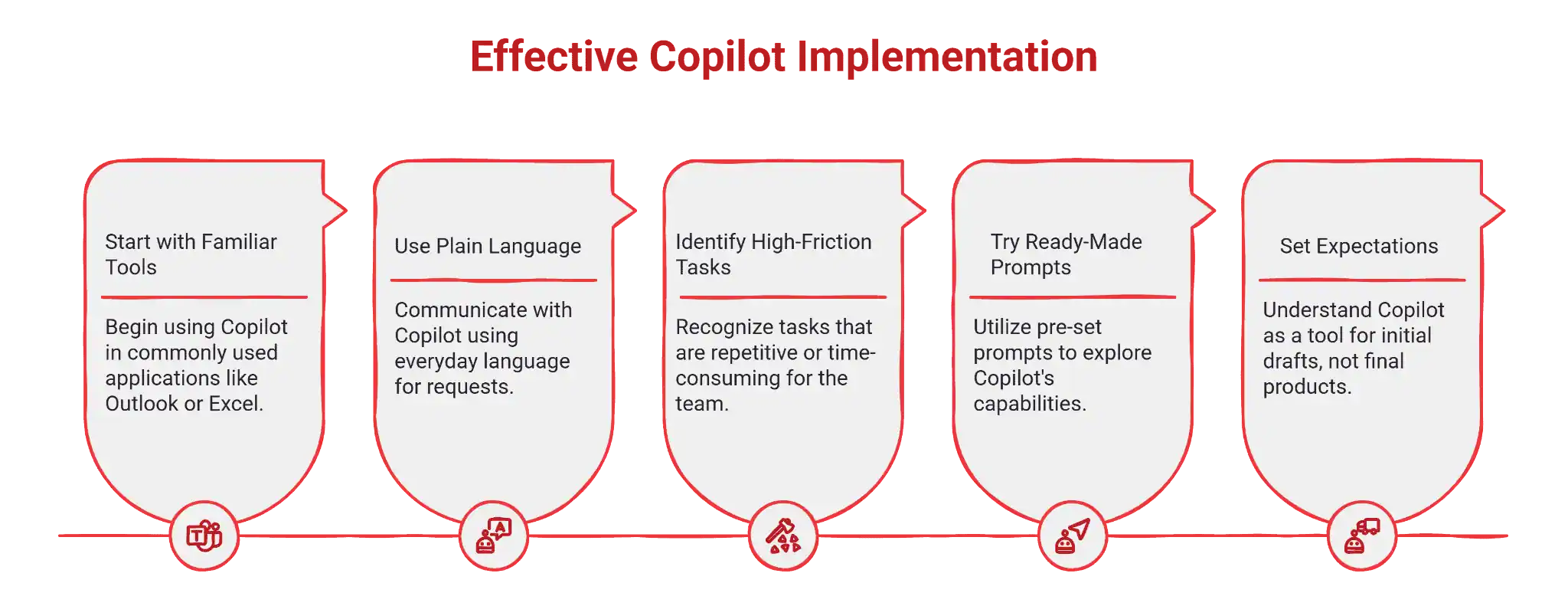
1. Start with the tools your team already uses
If your team spends most of their day in Outlook, Excel, or Teams, begin there. For example, try using Copilot to summarize a lengthy email thread or ask Excel to generate a sales trend summary. Choose one or two features to explore and build from there.
2. Use plain language to make requests
Copilot works best when you speak to it like you would to a coworker. You can say things like “Summarize this meeting,” “Draft an email to follow up with a client,” or “List the top three issues from this spreadsheet.” There is no need to use special commands or formatting.
3. Look for high-friction tasks
Consider tasks that your team finds repetitive or time-consuming. If your staff rewrites the same kinds of reports, spends too much time digging through data, or struggles with formatting presentations, Copilot can help. These everyday annoyances are where Copilot often delivers the most noticeable value, and help save users at least 1.2 hours each week.
4. Try ready-made prompts
Microsoft includes sample prompts inside many Copilot-enabled apps. These suggestions are a good way to see what Copilot can do without needing to think of your own request. Over time, your team will get more comfortable making their own.
5. Set expectations
Copilot is powerful, but it is not perfect. Encourage your team to review and revise what it creates. Think of it as a first draft or assistant, not a finished product. With that mindset, your team will be more likely to trust and adopt it.
How To Get the Most From Microsoft Copilot Usage
Microsoft Copilot works best when introduced with a clear purpose. While it is easy to start using, getting long-term value requires a bit of planning. Here are a few key steps to help your team adopt Copilot with confidence and avoid common missteps.
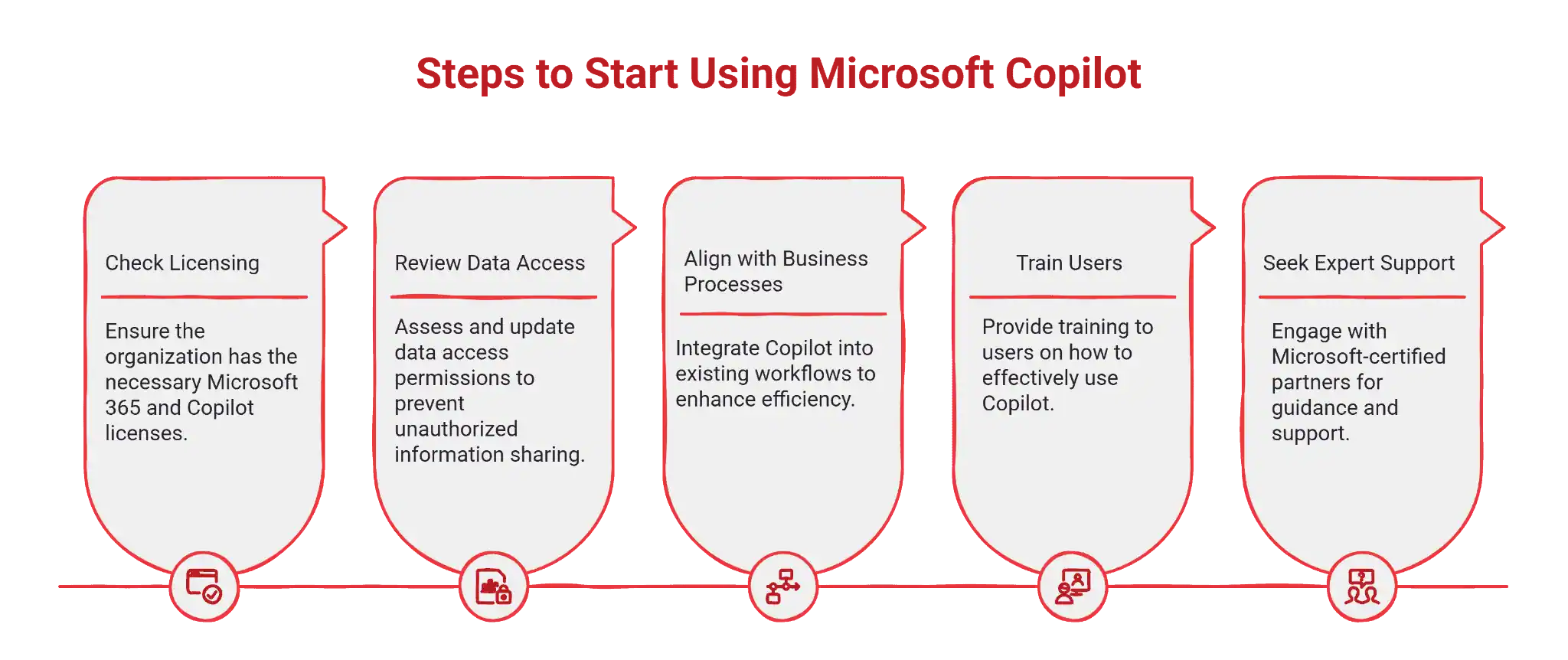
Make sure you have the right licensing
Copilot is not included in all Microsoft 365 plans. To use it, your organization needs Microsoft 365 Business Standard or Premium, along with a Copilot license. If you are not sure what your current setup includes, check with your Microsoft account rep or IT partner.
Review your data access and security setup
Copilot pulls content from the documents, emails, meetings, and chats your users have access to. If your Microsoft 365 environment has outdated permissions or sensitive content shared too broadly, Copilot could surface information that was never meant to be shared. Before rollout, it is worth reviewing who can see what.
Align Copilot with real business processes
The most effective Copilot usage happens when it supports actual workflows, not just experimentation. Think about where your team is already spending too much time. That might include customer communication, internal reporting, or meeting follow-ups. These are the areas where Copilot will make the biggest difference.
Train users to work with Copilot, not around it
Copilot works best when people know what to expect. Offer simple training or short demos that show how to ask Copilot for help, how to review its output, and when to trust it. The more comfortable your team feels, the more likely they are to use it every day.
Bring in expert support if needed
Working with a Microsoft-certified partner can help you avoid false starts. A partner can help you choose the right licensing, review data governance, identify high-value use cases, and develop a rollout plan tailored to your business needs. It is a good way to turn a promising tool into tangible, measurable results.
Ready to Put Copilot to Work?
Microsoft Copilot can help your business reduce repetitive work, improve focus, and better utilize the tools your team already relies on. Whether you’re writing emails, analyzing spreadsheets, preparing reports, or organizing tasks, Copilot is designed to make everyday work more straightforward and more productive.
But getting results with Copilot is not just about trying a few features. It takes the proper setup, the correct use cases, and a team that knows how to work with the tool.
Logic V is a Microsoft-certified consulting partner that helps small and mid-sized businesses roll out tools like Copilot with clarity and purpose. We can help you plan, deploy, and support Copilot across your team so it becomes a valuable part of your business, not just a new button in the toolbar.
If you are ready to get more from Microsoft 365 and take the frustration out of your daily workflow, let’s talk.