


You’re juggling documents, emails, meetings, and code—all while deadlines loom. It’s no wonder 70% of users say the time spent on repetitive office tasks saps their creativity.
“Efficient AI allies are the defining catalyst of modern work evolution.” ~ Logic V CEO
Microsoft Copilot leaps into that void, automating routine tasks and freeing you for higher‑value work. In this blog, we break down the Microsoft Copilot features you need to know—so you can make informed decisions and hit peak efficiency.
What Are Copilot Features and Why Do They Matter
“Copilot features” refer to the AI-enabled functions that let you interact naturally—via text—in Word, Excel, Outlook, and other applications.
They’re not gimmicks: they save time, reduce burnout, and elevate your output. The moment you type “summarize this memo,” your assistant jumps in. That’s why embracing these capabilities is more than optional—it’s essential.
Microsoft Copilot Features Transforming Daily Workflow
From automatic email summaries to AI‑drafted PowerPoint decks, Microsoft Copilot features are already embedded in your toolkit.
You can ask it to refine a legal clause, highlight Excel trends, or craft a polished message to your team—instantly elevating your output. These aren’t gimmicks; they’re productivity multipliers.
More articles you might like: |
Microsoft Copilot Capabilities in Core Apps
Now let’s dive deeper into Microsoft Copilot capabilities:
Word
Instant rephrasing, tone tuning, and even full‑length draft recommendations make creative blocks a thing of the past.
Excel
Copilot digests complex spreadsheets, spots outliers, suggests formulas, and builds charts—all from simple prompts like “visualize the Q2 sales dip.”
Outlook
It summarizes long email chains, proposes quick replies, and converts your workflows into automated tasks—all completed before your coffee cools.
PowerPoint
Upload bullet‑heavy slides and watch Copilot transform them into sleek visual stories—complete with design and speaker notes.
The 3 Must‑Know Microsoft 365 Copilot Features
Here are the top-tier Microsoft 365 Copilot features you’ll rely on daily:
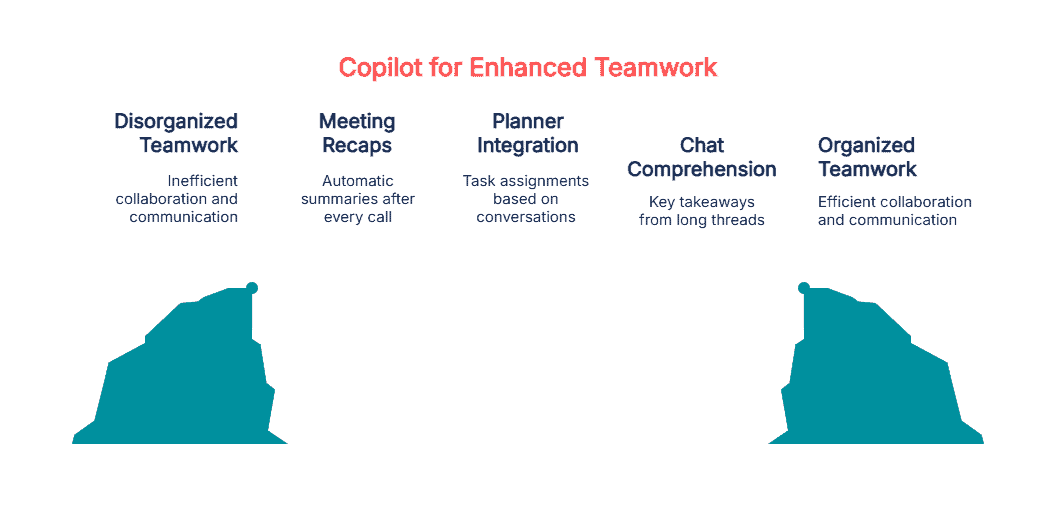
- Teams meeting recaps: Automatic summaries and action-item lists are generated after every call.
- Planner integration: Copilot suggests task assignments and deadlines based on conversations.
- Chat comprehension: Diffuses long threads by presenting key takeaways and next steps.
Security and compliance? All data stays within your M365 tenant—no AI leakage.
GitHub Copilot New Features for Developers
You’ll appreciate the latest GitHub Copilot’s new features if you code:
- Copilot Chat now offers contextual prompts and on‑the‑fly debugging.
- Enhanced auto‑complete delivers smarter semantic code chunks.
- New support for TypeScript, Go, Python, and Java—tailored to your repository.
Leap into the AI pairing revolution: a study shows Copilot users completed coding tasks 55% faster.
Explore all the Copilot Features Your Business Needs!
But don’t do it on your own! We’re the experts you need!
Top M365 Copilot Features for Enterprise Teams
For larger organizations, M365 Copilot features include:
- Collaborative AI editing: Multiple writers can work simultaneously on documents corrected by Copilot.
- Security controls: Admins define where Copilot can access sensitive files.
- Usage analytics: Dashboard insights show which teams are adopting Copilot and the time saved.
Microsoft Copilot Features List: Quick Reference
Here’s a handy Microsoft Copilot features list for easy recall:
| Application | Key Features |
| Word | Drafting, rewriting, citation assistance |
| Excel | Data analysis, charts, formula generation |
| PowerPoint | Slide design, outline conversion, speaker notes |
| Outlook | Email summarization, reply drafting, task creation |
| Teams | Meeting summary, action extraction, planner sync |
| GitHub | Autocomplete, chat-based debugging, multi-language |
| Dynamics/Power Platform | CRM insights, workflow automation |
M365 vs GitHub Copilot Feature Comparison
| Feature | M365 Copilot | GitHub Copilot |
| Core use cases | Document drafting, data analysis, meetings | Code completion, debugging, chat |
| Input mode | Natural language to AI assistant | Inline code prompts in IDE |
| Integration apps | Word, Excel, Outlook, Teams | VS Code, Visual Studio, Neovim |
| Analytics available | Viva Insights, Copilot Dashboard | Acceptance metrics via GitHub API |
| ROI indicators | Time saved, cost reduction, adoption rate | Coding speed, code quality, dev satisfaction |
| Security/privacy | Tenant‑level compliance settings | IDE‑based access controls |
How to Implement Your Copilot Strategy
You’re now eager to deploy Copilot. Here’s how you do it:
- Start with a pilot group—choose power users in Word or Excel.
- Train them in prompt techniques and document templates.
- Measure impact via Viva or Copilot Analytics dashboards
- Scale gradually, applying governance and security policies as you go.
- Iterate and optimize, using feedback and usage data to drive continuous improvement.
Choose Logic V for Expert Copilot Solutions
You’ve explored the essential Copilot features, learned actionable use cases, and reviewed the ROI upside. Now it’s time to take the next step.
Trusted Microsoft Management Services Near You |
||||
Whether you’re piloting with a team of five or rolling out across a thousand-person organization, Logic V can guide your strategy, implement Copilot seamlessly, and measure its impact.Contact Logic V today to set up a free consultation and start transforming your productivity with Microsoft Copilot.